
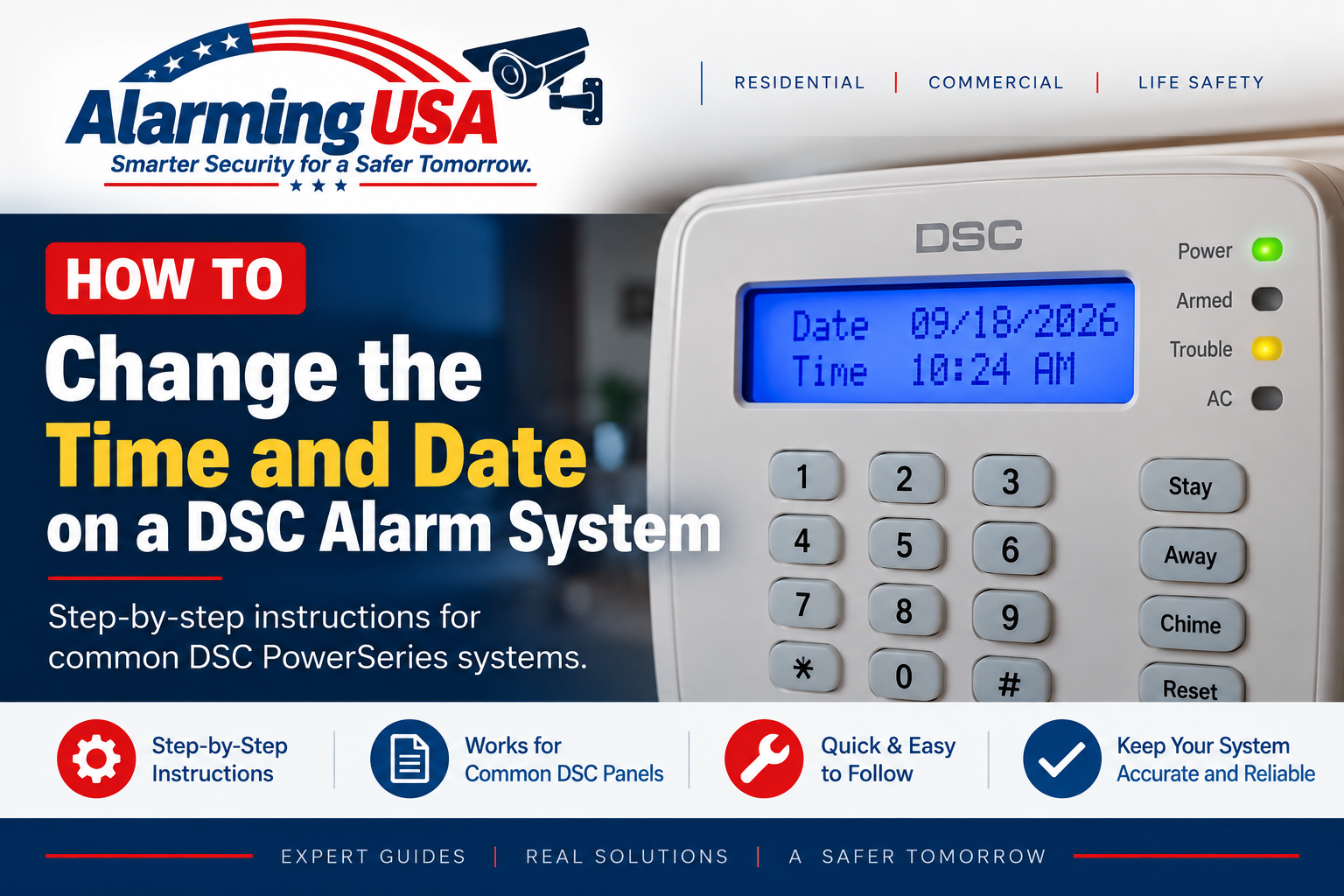
If your DSC alarm keypad is showing the wrong time or date, the correction is usually a user-level setting rather than an installer-programming task. This guide explains how to change the time and date on a DSC alarm system and highlights important differences between DSC panel generations.
DSC has produced several PowerSeries families, so identify your control panel and keypad before making changes. The exact prompts can differ between classic PowerSeries, PowerSeries Neo, and PowerSeries Pro systems.
Why Is the Time or Date Wrong?
The clock may need to be reset after an extended power interruption, a service event, or another condition that causes the panel to lose its stored time and date. An incorrect clock can also affect the timestamps shown in the system event history.
Identify Your DSC Alarm System
Common DSC families include classic PowerSeries PC1616, PC1832, and PC1864 panels; PowerSeries Neo HS2016, HS2032, HS2064, and HS2128 panels; and PowerSeries Pro HS3032, HS3128, and HS3248 panels. Use the user guide for your exact panel when its keypad prompts differ from this general guide.
How to Change the Time and Date on a DSC Alarm System
On documented classic DSC PowerSeries systems, time-and-date programming is a user function accessed through the User Functions menu. The sequence begins with:
* + 6 + [Master Code]
From the User Functions menu, select the time-and-date option provided by your panel or follow the LCD keypad prompts. Enter the values in the format specified by the user guide for your exact model.
Use the Correct Date and Time Format
DSC documentation specifies the required entry format for each panel family. Pay attention to the order of the hour, minute, month, day, and year fields and whether the system expects a 24-hour clock. Do not assume that a sequence written for one DSC generation applies to every DSC panel.
Check the Display After Programming
After completing the user-function entry, return the keypad to its normal display and verify that the time and date are correct. If the keypad still reports a clock-related trouble, review the trouble display and the user manual for the exact system.
What If the Yellow Trouble Light Is Still On?
An incorrect clock can be one reason a DSC system reports a trouble condition, but it is not the only one. If the yellow indicator remains illuminated, see our guide on how to clear a DSC yellow trouble light and identify the active trouble before making additional changes.
Check the Backup Battery After a Long Power Outage
If the clock problem followed a long power outage, the panel may also report a standby-battery condition. See our DSC alarm panel battery guide for information about identifying battery-related trouble.
Do You Need the Installer Code?
Normal clock programming on supported DSC systems is available through user functions. Do not enter installer programming simply to correct the system clock. Use the master-user procedure documented for your panel.
When to Contact Your Alarm Company
- You do not have an authorized master code.
- You cannot identify the DSC panel or keypad.
- The keypad prompts do not match the user guide.
- The clock repeatedly loses its settings.
- The system continues to report trouble after the clock is corrected.
- The installation is a fire, life-safety, commercial, or regulated system.
Related DSC DIY Guides
Continue with our DSC DIY series: How to Change User Codes on a DSC Alarm System, How to Change the Battery in a DSC Alarm Panel, and How to Clear the Yellow Trouble Light on a DSC Alarm System.
Official DSC Documentation
DSC provides official user manuals and a dedicated Time and Date Programming Guide for classic PowerSeries PC1616, PC1832, and PC1864 systems. Always use the documentation for the exact panel and revision when its prompts differ from this general guide.
Final Thoughts
Learning how to change the time and date on a DSC alarm system starts with identifying the panel generation and using its documented user functions. On classic PowerSeries PC1616, PC1832, and PC1864 systems, DSC provides specific user documentation and a dedicated time-and-date programming guide.
Once the clock is corrected, verify the keypad display. If a trouble indicator remains, use the DSC trouble display to identify the actual condition rather than assuming the clock is still the problem.