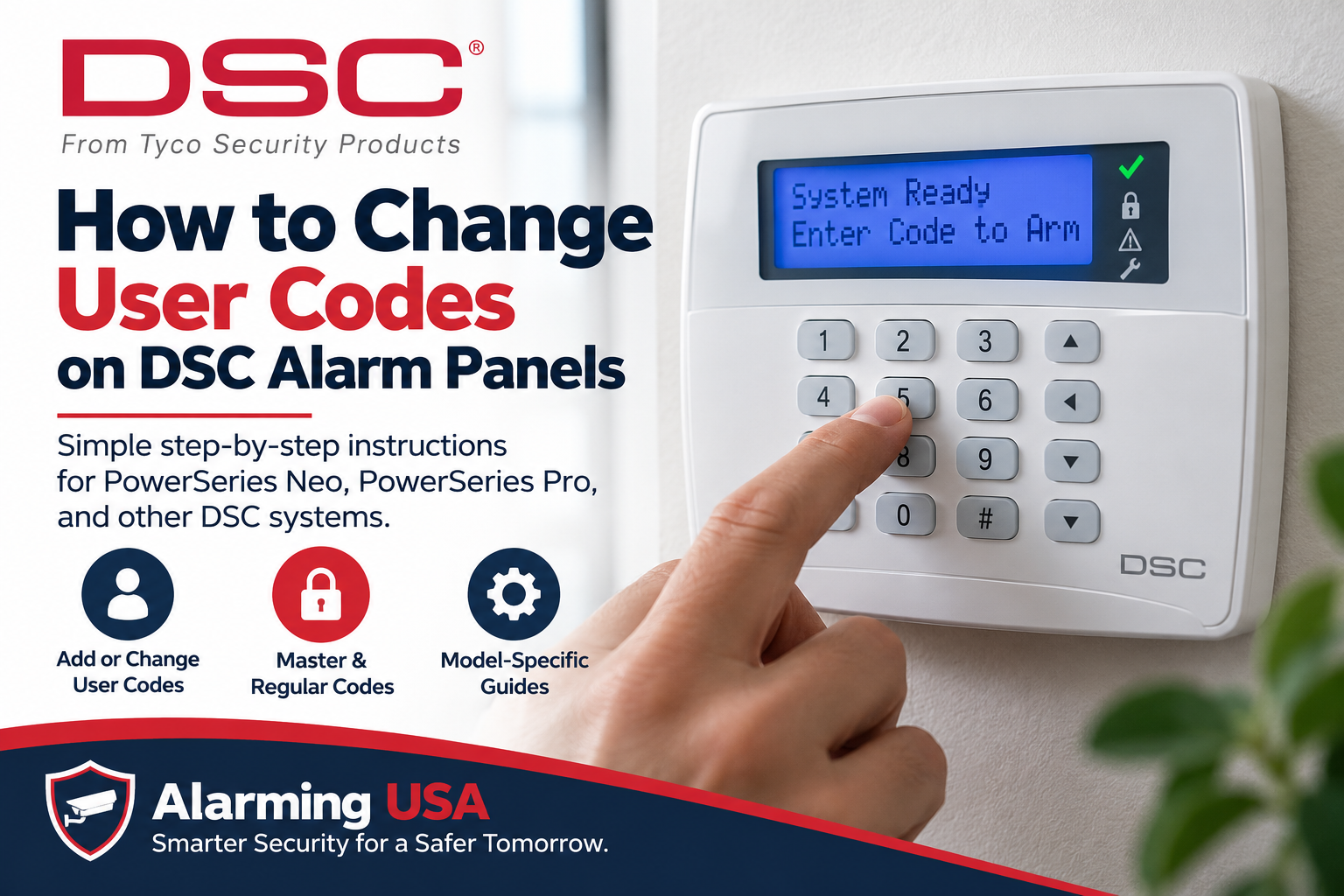
If you need to add a family member, employee, house sitter, or other authorized user to a DSC security system, many DSC panels let the master user manage access codes directly from the keypad. This guide explains how to change codes on a DSC alarm system while keeping installer programming separate.
DSC has produced several panel families, including classic PowerSeries, PowerSeries Neo, and PowerSeries Pro. The exact menus, user-number ranges, and code lengths can vary, so identify your panel before changing access codes.
Identify Your DSC Panel First
Look for the control-panel model in the system documentation or on the equipment label. PowerSeries Neo includes models such as HS2016, HS2032, HS2064, and HS2128, while PowerSeries Pro includes HS3032, HS3128, and HS3248. Older PowerSeries systems use different model numbers and may have different user capacities.
Do not rely only on the keypad appearance. A keypad can be compatible with more than one panel, and the panel determines many programming rules.
Master Code vs. Regular User Code
The master code provides additional user-level authority, including access to code-management functions on supported DSC systems. A regular user access code is assigned to someone who needs normal system access.
The installer code is different. It is intended for installer programming and system configuration. You normally do not need installer programming to add or change ordinary user access codes.
Before You Change a DSC User Code
- Make sure you are authorized to manage the system.
- Identify the DSC panel family and model.
- Have the current master or authorized supervisor code available.
- Know which user slot you want to add, change, or remove.
- Choose a code that is not easy to guess.
- Keep the master code private rather than sharing it as everyone’s everyday code.
How to Change Codes on a DSC Alarm System
On documented DSC PowerSeries Neo systems, the access-code menu begins with:
* + 5 + [Master or Supervisor Code]
From there, select the desired user number. On the PowerSeries Neo user guide, configured users are assigned numbers from 01 through 95. LCD keypads can also let you scroll through users and select the desired entry.
Adding or Changing a Code on PowerSeries Neo
For compatible PowerSeries Neo panels, open the Access Codes menu with * 5, enter the authorized master or supervisor code, and select the appropriate two-digit user number. The user guide then provides the Access Code option for entering or replacing that user’s code.
Because code length and available options can depend on system configuration, follow the keypad prompts and the user guide for your exact panel rather than assuming every DSC installation is configured identically.
Changing an Existing User Code
If an authorized user already occupies a user slot, selecting that user and entering a new access code replaces the existing code on supported systems. Keep track of which user number belongs to each authorized person so you do not accidentally replace someone else’s access.
Deleting a DSC User Code
DSC user guides provide a way to remove an access code from a selected user. The exact keypad action can differ with panel family and keypad type, so use the documented deletion procedure for your model rather than guessing.
When an employee, contractor, tenant, sitter, or other user no longer needs access, remove that user’s authorization instead of leaving an unused active code in the panel.
What About PowerSeries Pro?
DSC’s PowerSeries Pro family includes HS3032, HS3128, and HS3248 panels. Official DSC documentation identifies [*][5] as the Program Access Codes menu and describes the master code as providing access to functions in the [*][5] and [*][6] menus.
PowerSeries Pro has more advanced capabilities and can be used in larger installations. Follow the user guide for the specific panel and keypad, especially when partitions, user labels, proximity tags, or access attributes are involved.
What About Older DSC PowerSeries Panels?
Classic DSC PowerSeries systems also commonly use a * 5 user-code programming menu, but older panels can differ in user-slot ranges and programming details. Confirm the exact model before applying instructions written for Neo or Pro equipment.
Don’t Change the Installer Code Just to Manage Users
User-code management and installer programming serve different purposes. DSC’s PowerSeries Pro documentation describes the installer code as the credential used to access Installer Programming through [*][8], while the master code provides access to user functions such as [*][5].
If your goal is simply to give or remove normal user access, stay in the documented user-code menu.
Use Individual Codes Instead of Sharing the Master Code
When the panel supports multiple users, give each authorized person an individual user code. This makes future changes easier because one person’s access can be changed or removed without replacing the code used by everyone else.
Choose Better Alarm Codes
Avoid easily guessed codes and do not post access codes near the keypad. Also avoid using the master code as the everyday credential for every person who uses the system.
Test the New Code Safely
After adding or changing a code, verify that the authorized user’s code works as expected using normal system operation. Avoid intentionally creating an alarm condition simply to test the credential. If the system is monitored and you need more extensive testing, follow your alarm provider’s test procedure.
When to Contact Your Alarm Company
Contact a qualified alarm professional if you cannot identify the panel, do not have an authorized master or supervisor code, encounter unexpected keypad prompts, or have a partitioned or commercial configuration you do not understand. Model-specific documentation is safer than experimenting with undocumented programming commands.
Related Alarming USA How-To Guides
If you work with other alarm platforms, see our guide on changing Honeywell, Ademco, and First Alert alarm codes and our guide on changing the time and date on a Honeywell alarm panel.
Official DSC Documentation
DSC maintains official product manuals for PowerSeries Neo and PowerSeries Pro. Use the user guide for your exact model and revision when the keypad prompts differ from this general guide.
Final Thoughts
Learning how to change codes on a DSC alarm system starts with identifying the panel and using an authorized master or supervisor credential. On PowerSeries Neo, official DSC documentation directs users to the * 5 Access Codes menu, where an authorized user can select a user slot and manage its access code.
Because DSC PowerSeries, PowerSeries Neo, and PowerSeries Pro span multiple generations and configurations, use the exact model’s user guide whenever its prompts or options differ. Keep installer programming separate, assign individual codes where practical, and remove access when it is no longer needed.
[…] If you also need to manage authorized users, see our guide on how to change codes on a DSC alarm system. […]
[…] with our DSC series: change DSC user codes, change a DSC alarm panel battery, and understand a DSC yellow trouble […]