
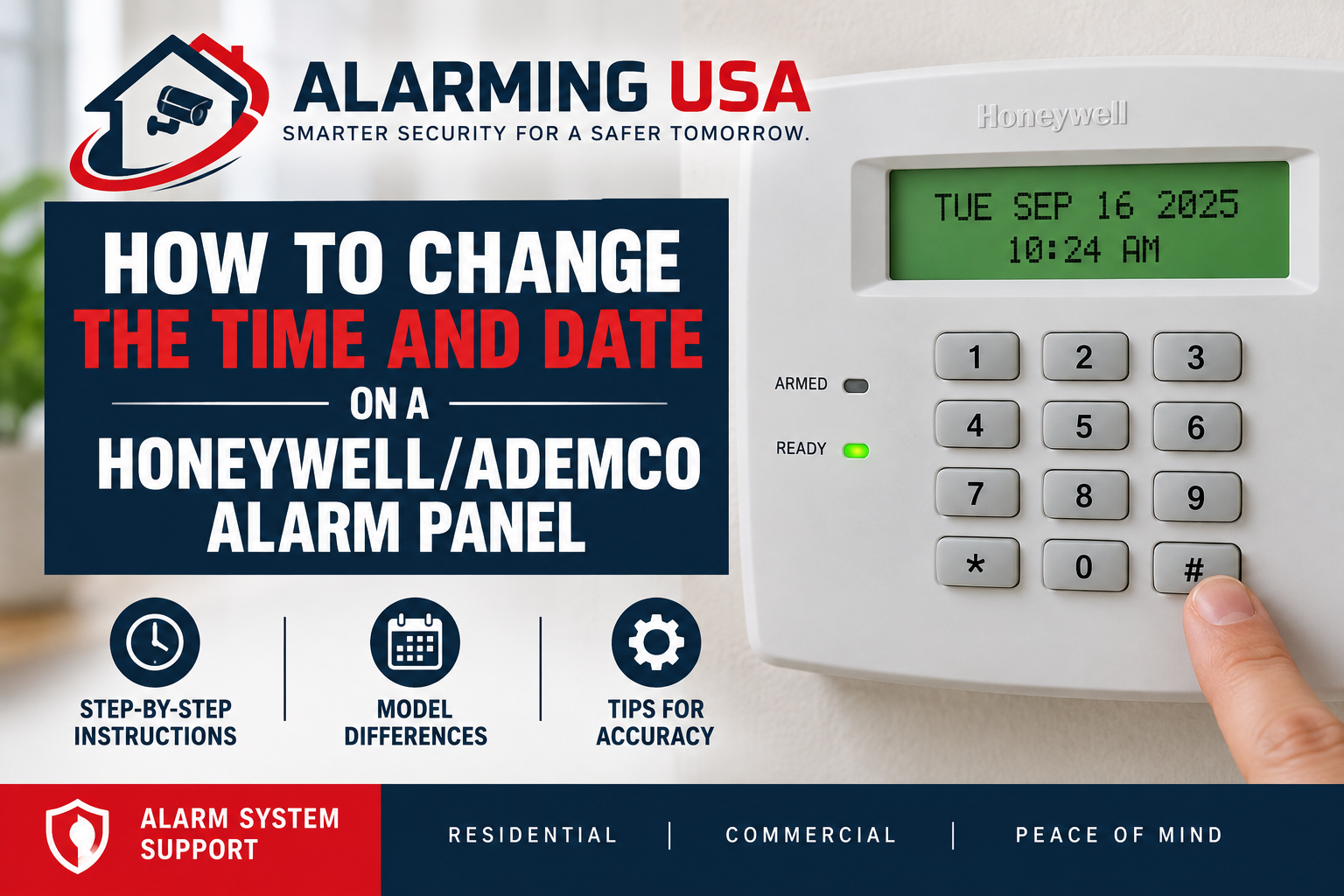
If the clock on your security system is wrong, this guide explains how to change the time on a Honeywell alarm panel and set the date on compatible Honeywell, Ademco, and VISTA systems.. This guide explains how to change the time on a Honeywell alarm panel while avoiding installer programming.
The exact prompts and AM/PM selection can vary by panel revision and branded version, so identify your control panel before making changes. This guide focuses on common VISTA-family systems such as the VISTA-15P and VISTA-20P and notes where related First Alert models can differ.
Why the Alarm Panel Time and Date Matter
The system clock is used for features such as event logs and scheduled functions. Resideo lists time/date-stamped event logging among the features of VISTA-family panels, so an incorrect clock can make system history harder to interpret.
Identify Your Honeywell or Ademco Panel First
The brand printed on the keypad does not always identify the control panel installed in the metal cabinet. You may see Ademco, Honeywell, Honeywell Home, Resideo, or First Alert branding on related equipment.
Resideo currently identifies the VISTA-15P and VISTA-20P as part of its VISTA security platform. Older First Alert Professional panels can use similar operating concepts, but their exact instructions may differ. Confirm the model whenever possible before following a keypad sequence.
Before Changing the Clock
- Make sure the security system is disarmed.
- On a partitioned system, make sure all required partitions are disarmed.
- Have an authorized master code available.
- Confirm the control-panel model if possible.
- Do not enter installer programming just to change the normal system clock.
VISTA documentation specifies that all partitions must be disarmed before the date and time are set.
How to Change the Time on a Honeywell Alarm Panel
On compatible VISTA-15P and VISTA-20P systems, the real-time clock is accessed with this keypad sequence:
[Master Code] + # + 6 + 3
The current time and date should appear on a compatible alpha display keypad. Press the * key to begin editing. A cursor appears at the hour field.
Enter the New Time and Date
Follow the prompts in this order:
- Enter the hour as two digits.
- Enter the minutes as two digits.
- Select AM or PM according to the instructions for your exact panel revision.
- Enter the last two digits of the year.
- Enter the month as two digits.
- Enter the day as two digits.
Use * to move forward through fields when needed and # to move backward. After the final field, follow the keypad prompt or press * as specified by your panel documentation to save and exit.
Important: AM/PM Commands Can Differ
Do not assume the AM/PM digit is identical on every Honeywell, Ademco, or First Alert version. Documentation for VISTA and related First Alert panels shows model or revision differences in the AM selection. Follow the display and the user guide for the exact panel you are servicing rather than guessing.
This is one reason identifying the control panel is more reliable than relying only on the logo printed on the keypad.
Example of the Clock-Setting Process
The general workflow is:
[your authorized master code] → # → 6 → 3 → * → enter the requested time/date fields
For security, this article does not use an example master code. Use only a code you are authorized to use on the system.
How to View the Current Time and Date
On supported alpha-keypad VISTA systems, entering the authorized master code followed by # 6 3 displays the current clock. If you only want to check the setting, do not press * to enter editing mode.
Some systems can also have a programmable function key assigned to display the date and time.
What If You Have a Fixed-Word Keypad?
A fixed-word keypad has a more limited display than a full alpha keypad. If the keypad does not clearly show the clock-editing prompts, use the manual for the panel and keypad combination or have the alarm company assist you. Avoid entering undocumented commands simply to experiment.
What About First Alert Professional Panels?
Some First Alert Professional systems, including models related to the VISTA platform, use the same basic security/master code + # + 6 + 3 approach for date and time. However, First Alert documentation shows that details such as the AM/PM selection and timeout behavior can vary between versions.
Use the model number—not just the First Alert name—to select the correct user guide.
What If the Clock Keeps Losing Time?
If the clock repeatedly becomes incorrect, changing it again may only address the symptom. Note whether the problem follows a power outage, system reset, service event, or another recurring condition.
If the issue continues, contact the alarm provider or a qualified alarm technician. Persistent clock problems may require system-specific troubleshooting rather than repeated user adjustments.
Don’t Confuse Clock Setting With Installer Programming
Changing the user-accessible real-time clock is different from programming zones, communications, reporting, or other installer settings. If your goal is simply to correct the displayed time and date, stay within the documented user procedure for your panel.
If you are also managing authorized user access, see our guide on how to change alarm codes on Honeywell, Ademco, and First Alert panels.
Official Resideo Resources
Resideo maintains information about the VISTA security platform, including current VISTA control panels and supporting resources. Resideo’s product information for the VISTA-15P and VISTA-20P also documents their time/date-stamped event-log capabilities.
Final Thoughts
For many compatible VISTA systems, learning how to change the time on a Honeywell alarm panel starts with the master-code command # 6 3. From there, the keypad lets an authorized user view the clock and, on supported alpha keypads, enter the time/date editing screen.
Because Honeywell, Ademco, Resideo, and First Alert systems span many models and revisions, verify the exact panel before relying on details such as the AM/PM selection. If the display or prompts do not match the instructions for your model, stop and consult the correct user guide or your alarm provider.
Learning how to change the time on a Honeywell alarm panel is straightforward on many compatible VISTA systems once you identify the correct panel and have an authorized master code.
ALARMING USA COMMUNITY
Discussion 0
Share your experience, ask a question, or reply to another member.
No comments yet. Be the first to start the discussion.