
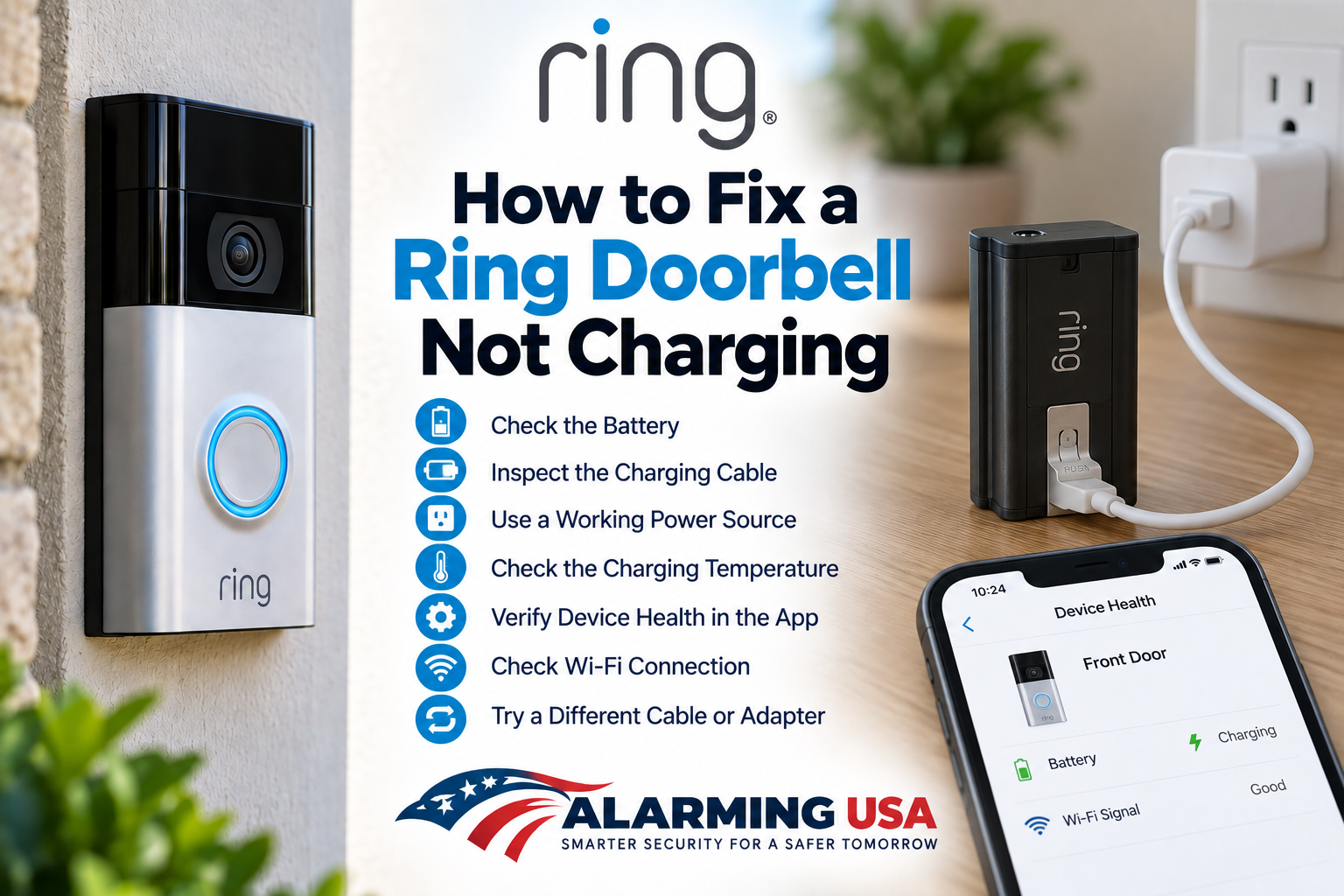
If your Ring Doorbell is not charging, the cause may be related to the battery, charging cable, power source, temperature, or—in supported wired installations—the doorbell’s power connection. This guide walks through safe checks you can make before deciding that the battery or doorbell needs further service.
Ring Doorbell Not Charging? Check the Battery Status First
Open the Ring app, select your doorbell, and check Device Health. Review the battery level and any available power information for your model. This gives you a starting point before removing the battery or changing the installation.
Step 1: Charge a Removable Battery Correctly
If your Ring Doorbell uses a removable Quick Release Battery Pack, remove it according to the instructions for your model and connect it to a compatible USB charging cable and power source. Allow sufficient time for charging before reinstalling it.
Step 2: Check the Charging Cable and Power Source
If charging does not appear to begin, inspect the charging cable and try a known-working USB power source that meets the requirements for your battery or device. A damaged cable, loose connection, or faulty USB power source can make a battery problem look like a doorbell problem.
Step 3: Give the Battery Enough Time to Charge
Charging time varies with the battery, power source, and environmental conditions. Do not assume the battery has failed simply because the percentage does not rise immediately. Follow Ring’s charging guidance for your exact model and battery.
Step 4: Consider the Temperature
Very cold or hot conditions can affect rechargeable batteries and charging behavior. If the doorbell or battery has been exposed to extreme temperatures, allow it to return to an appropriate operating environment before charging or testing it again. Follow Ring’s temperature guidance for your specific product.
Step 5: Reinstall the Battery and Recheck Device Health
After charging a removable battery, reinstall it securely and allow the Ring Doorbell to reconnect. Then return to Device Health in the Ring app and check the reported battery level and device status again.
Step 6: Understand Hardwiring on Battery-Powered Ring Doorbells
Some battery-powered Ring Doorbells can be connected to compatible doorbell wiring, but the battery remains part of the device’s power system. Hardwiring requirements differ by model, so check Ring’s specifications and installation instructions for your exact doorbell rather than applying another model’s voltage or wiring guidance.
Step 7: Check Available Power Information
For models and installations that report power information in Device Health, review that information for signs that the expected power source is not being detected. If the issue involves household doorbell wiring or a transformer, use the model-specific Ring instructions and consider qualified assistance when electrical work is required.
Step 8: Check Wi-Fi if the Battery Seems to Drain Too Fast
A charging complaint can sometimes actually be a fast-drain problem. Ring notes that weak Wi-Fi can increase battery use because a device may repeatedly lose and regain its connection. If your battery charges but drains unusually quickly, check RSSI and network stability. See our Ring Doorbell poor Wi-Fi signal guide.
Step 9: Review Motion and Usage
Frequent motion events, repeated Live View use, and other activity can increase battery consumption. If the battery reaches a normal charge but does not last as expected, review how often the doorbell is activating and whether motion settings are producing unnecessary events.
What If the Ring Doorbell Is Also Offline?
If the doorbell will not reconnect after charging, troubleshoot connectivity separately. Our Ring Doorbell keeps going offline guide covers Device Health, Wi-Fi, power, and reconnecting the device.
What If Live View Is Not Working?
If the doorbell is powered but video will not load, see our Ring Doorbell Live View not working guide. That guide focuses on device status, the Ring app, Wi-Fi, internet speed, VPNs, and network troubleshooting.
Quick Charging Checklist
- Check battery and power information in Device Health.
- Use the correct charging method for your exact Ring model.
- Inspect the USB cable and power source.
- Allow adequate charging time.
- Consider extreme temperature conditions.
- Reinstall the battery securely and recheck the app.
- Verify model-specific hardwiring requirements.
- Check weak Wi-Fi and excessive activity if the battery drains quickly.
Final Thoughts
When a Ring Doorbell is not charging, start with Device Health and the charging basics before assuming the hardware has failed. Check the battery, cable, power source, temperature, and the requirements for your exact Ring model.
If the battery charges normally but loses power unusually fast, shift your troubleshooting toward Wi-Fi quality, motion activity, Live View usage, and other factors that can increase battery consumption.