
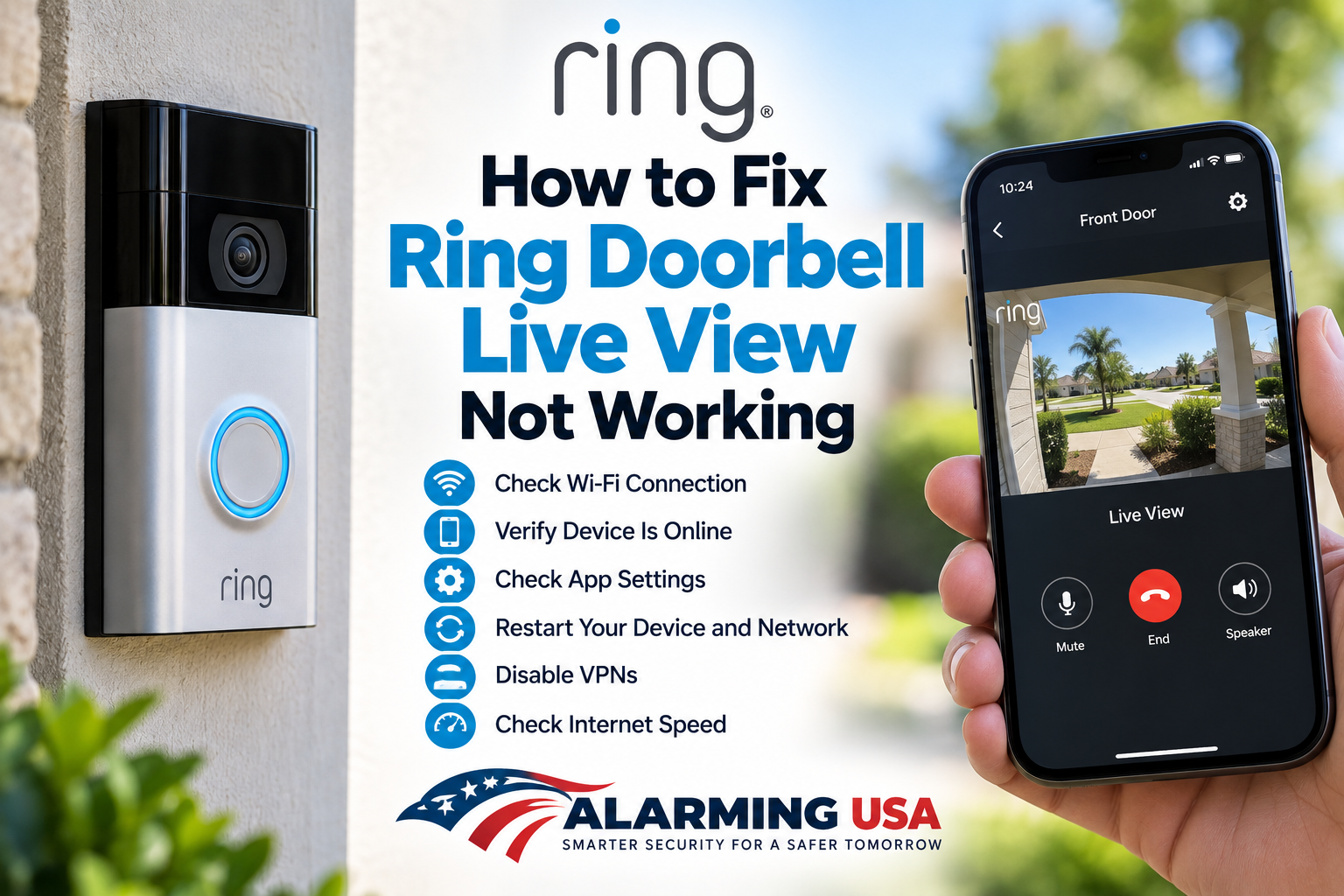
If Ring Doorbell Live View is not working, the problem can come from the Ring app, the doorbell’s online status, Wi-Fi signal strength, internet performance, or settings on your phone. This guide walks through the most useful checks in a logical order so you can get Live View working again.
Ring Doorbell Live View Not Working? Start Here
Before changing settings, confirm that your Ring Doorbell shows as online in the Ring app. Ring recommends checking device status when Live View does not load as expected. If the doorbell is offline, restore its connection first before troubleshooting Live View itself.
Step 1: Make Sure Live View Is Enabled
Open the Ring app, select your doorbell, then go to Device Settings > Video Settings. Make sure Live View is turned on. Then return to the dashboard, tap the doorbell preview, and select Tap to Go Live.
Step 2: Close and Reopen the Ring App
If Live View hangs or refuses to load, fully close the Ring app and reopen it. Ring recommends this when a selected camera or doorbell does not load as expected. Also check for an available Ring app update.
Step 3: Check the Ring Doorbell’s Wi-Fi Signal
Weak Wi-Fi can cause low-quality video, interruptions, or an offline device. In the Ring app, open your doorbell and check Device Health > Signal Strength. Ring measures the connection using RSSI. A value closer to zero represents a stronger connection.
Ring currently rates RSSI from 0 to -60 as great, -60 to -70 as okay, -70 to -80 as poor, and -80 or worse as very poor. If your signal is weak, see our guide to fixing a Ring Doorbell with poor Wi-Fi signal.
Step 4: Test Your Internet Speed
Live video depends on your internet connection as well as the Wi-Fi signal between the router and doorbell. Ring recommends testing internet performance near the router and again near the Ring device. Higher-resolution Ring devices require more upload bandwidth, and multiple Ring devices increase the total bandwidth needed.
Step 5: Restart Your Phone or Tablet
If the Ring Doorbell is online and has a healthy connection, restart the phone or tablet you use with the Ring app. Ring recommends turning the device off, waiting about 30 seconds, and turning it back on when troubleshooting video or audio problems.
Step 6: Turn Off a VPN
If you use a VPN on your phone, tablet, or computer, temporarily disable it and test Live View again. Ring states that VPNs are not supported with the Ring app and can cause connection problems, blank videos, and problems loading videos or other data.
Step 7: Reboot Your Router and Modem
If other troubleshooting steps have not helped, reboot your home network. Ring recommends unplugging the Wi-Fi router and modem for about 30 seconds and then plugging them back in. Allow the network to reconnect before testing Live View again.
Step 8: Check for an Offline Doorbell
If the Ring Doorbell has gone offline, Live View will not work normally. Check Device Health and restore the network connection. Our Ring Doorbell keeps going offline guide covers Wi-Fi, power, reconnecting the network, and other common causes.
Step 9: Check End-to-End Encryption
If you enabled Ring’s video End-to-End Encryption, Ring recommends using the same phone or tablet that was used when the feature was set up. Encryption configuration can therefore be another item to check when Live View or recorded video will not load as expected.
Step 10: Reboot the Ring Device
If the app, phone, internet connection, and Wi-Fi all appear healthy but video problems continue, Ring includes rebooting the Ring device among its troubleshooting steps. Follow the instructions appropriate for your exact Ring Doorbell model rather than assuming every model uses the same procedure.
Does Ring Live View Require a Subscription?
Standard Live View is available to Ring app users and Shared Users without a Ring subscription. Some additional features, such as Extended Live View, Continuous Live View, Picture-in-Picture, and Multi-Cam Live View, have separate device and subscription requirements.
Try Live View From Ring.com
Ring also supports Live View through compatible web browsers on Ring.com. Testing from another supported device or browser can help determine whether the problem is limited to the Ring app on one phone or tablet.
Quick Live View Troubleshooting Checklist
- Confirm the Ring Doorbell is online.
- Make sure Live View is enabled in Video Settings.
- Close and reopen the Ring app.
- Update the Ring app and your mobile device.
- Check RSSI in Device Health.
- Test internet speed near the doorbell.
- Restart your phone or tablet.
- Disable any VPN and test again.
- Reboot your router and modem if necessary.
- Check End-to-End Encryption if you use it.
Final Thoughts
When Ring Doorbell Live View is not working, start with the simplest checks: confirm the doorbell is online, verify Live View is enabled, reopen the app, and inspect Wi-Fi signal strength. If those checks look good, move on to internet speed, your phone or tablet, VPN settings, and the home network.
If Live View works but your doorbell is missing visitors, see our Ring Doorbell motion detection troubleshooting guide for a separate set of checks.