
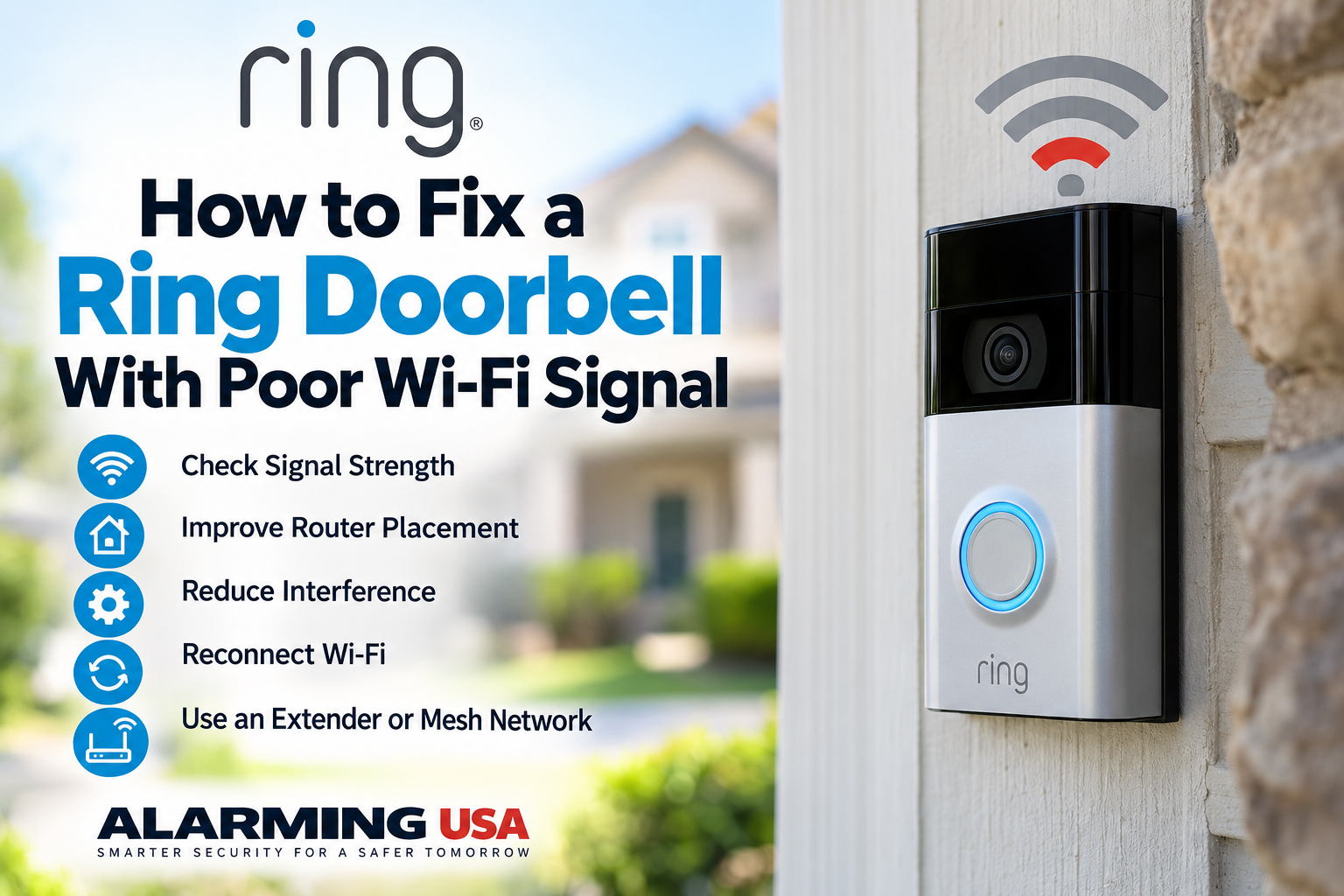
A weak wireless connection can cause delayed notifications, slow Live View, interrupted video, or a Ring Doorbell that repeatedly goes offline. This guide explains how to troubleshoot a Ring Doorbell poor WiFi signal problem by checking RSSI in Device Health, improving router placement, reducing interference, and reconnecting the doorbell when necessary.
Ring Doorbell Poor WiFi Signal? Check RSSI First
Ring measures the Wi-Fi connection to your device using RSSI, or Received Signal Strength Indicator. In the Ring app, open your doorbell and go to Device Health, then look for Signal Strength. RSSI uses negative numbers, so a number closer to zero represents a stronger connection.
What Is a Good RSSI for a Ring Doorbell?
Ring currently rates RSSI from 0 to -60 as great. A reading from -60 to -70 is okay but could be improved. -70 to -80 is poor and may cause delays or interruptions, while -80 or worse can cause intermittent service or the device to fall offline.
Step 1: Check Signal Strength in Device Health
Open the Ring app, tap the menu, choose Devices, select your Ring Doorbell, open Device Health, and check Signal Strength. Device Health can also show the connected network, online/offline status, battery information on battery models, and power information on supported hardwired models.
Step 2: Improve Router Placement
Wi-Fi becomes weaker with distance and obstacles. If practical, place the router closer to the Ring Doorbell and keep it in an open location rather than behind furniture, inside a cabinet, or on the floor. A more central and elevated router position can provide a clearer wireless path through the home.
Step 3: Look for Walls and Other Wi-Fi Obstacles
Ring identifies brick, stucco, metal, large appliances, electronics, and mirrors as examples of things that can weaken Wi-Fi. A doorbell mounted outside may have several walls or construction materials between it and the router, even when the straight-line distance does not seem very far.
Step 4: Consider 2.4 GHz Wi-Fi
All Ring devices support 2.4 GHz Wi-Fi, while only some models also support 5 GHz. If your router uses separate network names for each band and your Ring model supports the available network, 2.4 GHz can be useful when greater range is needed. Check the specifications for your exact Ring model before changing networks.
Step 5: Test the Internet Connection Near the Doorbell
Ring recommends testing internet performance both near the router and near the Ring device. Connect your phone to the same Wi-Fi network and compare the results. A large drop in performance near the doorbell can help identify a coverage problem rather than an issue with the internet connection entering your home.
Step 6: Reconnect the Ring Doorbell to Wi-Fi
If the doorbell has disconnected, open Device Health in the Ring app and use the available Reconnect, Reconnect to Wi-Fi, or Change Network option. Have your Wi-Fi password available and follow the prompts for your model.
Step 7: Consider Better Wi-Fi Coverage
If router placement cannot provide a strong signal at the front door, Ring recommends options such as a compatible Chime Pro or a mesh Wi-Fi system. The goal is to provide a strong wireless connection where the Ring Doorbell is actually installed rather than simply having a strong signal elsewhere in the house.
Using a Ring Chime Pro
If you use a compatible Ring Chime Pro, Ring provides an in-app Placement Test. The test helps determine whether the Chime Pro has a strong enough connection to the router while also being positioned well enough to extend coverage to connected Ring devices.
Poor Wi-Fi Can Also Affect Battery Life
Ring notes that a weak Wi-Fi connection can cause a battery-powered doorbell or camera to repeatedly lose and regain its connection, which may increase battery use. Improving the wireless connection can therefore help with both connectivity and battery performance.
What If the Ring Doorbell Keeps Going Offline?
If poor signal is causing repeated disconnections, see our guide to fixing a Ring Doorbell that keeps going offline. It covers Device Health, power, internet connectivity, reconnecting the device, and other common causes.
What If Wi-Fi Is Good but Motion Is Still Being Missed?
If your RSSI is healthy but visitors are still being missed, the issue may be motion configuration instead of connectivity. See our Ring Doorbell not detecting motion guide, our motion sensitivity guide, and our Ring Motion Zones guide.
Quick Ring Wi-Fi Checklist
- Check RSSI under Device Health.
- Remember that an RSSI number closer to zero is stronger.
- Move the router closer when practical.
- Keep the router out in the open and away from major obstructions.
- Check for brick, stucco, metal, appliances, electronics, and mirrors between the router and doorbell.
- Test Wi-Fi performance near the Ring Doorbell.
- Consider improved Wi-Fi coverage if the front door remains a weak-signal area.
Final Thoughts
A Ring Doorbell poor WiFi signal problem is easiest to troubleshoot when you start with the RSSI reading instead of guessing. Check Device Health, improve router placement, reduce obstacles where practical, and test the connection at the doorbell’s actual location.
If the signal remains weak even after repositioning the router, improving Wi-Fi coverage near the door may be the next step. Once connectivity is stable, Live View, notifications, and video performance should be easier to evaluate.