
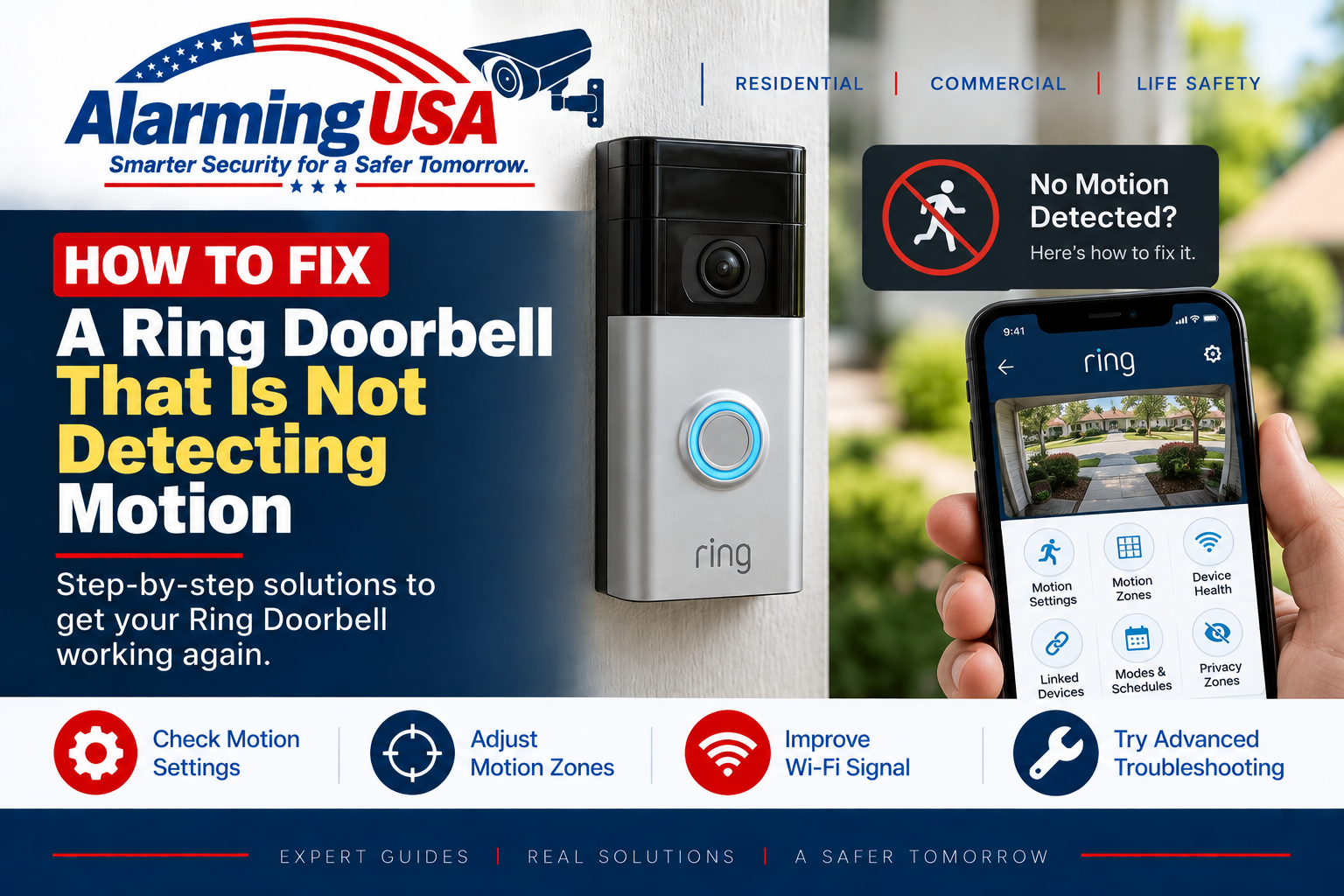
If your Ring Doorbell is missing people, deliveries, or other activity, the problem is often a motion setting rather than a failed doorbell. This guide explains how to troubleshoot a Ring Doorbell not detecting motion by checking Motion Detection, Motion Zones, sensitivity, schedules, Privacy Zones, device status, and Wi-Fi signal.
Ring’s current support guidance recommends first confirming that the device is online and that Motion Detection is enabled. Ring also notes that the protective film supplied on a new device can prevent motion detection if it has not been removed.
Ring Doorbell Not Detecting Motion? Start Here
Open the Ring app and confirm that your doorbell is online. Then select the doorbell and make sure Motion Detection is turned on. If the device is new, confirm that all protective film has been removed from the front of the doorbell.
Step 1: Make Sure Motion Detection Is Turned On
In the Ring app, open the main dashboard, tap the menu, choose Devices, select your Ring Doorbell, and confirm that Motion Detection is enabled. Ring states that Motion Detection must be enabled for the device to detect and record motion events.
Step 2: Check Your Motion Zones
Go to your doorbell’s Motion Settings and review its Motion Zones. Make sure the porch, walkway, driveway, or other area where you expect activity is actually inside a configured zone. Areas outside the active zones may be intentionally ignored.
Step 3: Increase Motion Sensitivity
If the doorbell detects some activity but misses events farther away, try increasing Motion Sensitivity. Ring states that increasing sensitivity can help when motion events are being missed. Make changes gradually and test again because higher sensitivity can also increase unwanted alerts.
Step 4: Check Motion Schedules and Modes
Motion Schedules and Mode settings can affect when motion functions or alerts are active. If the problem occurs only at certain times, temporarily review or disable relevant schedules and check the doorbell’s Mode Settings while troubleshooting.
Step 5: Check Privacy Zones
A Privacy Zone can block an area that you actually want the doorbell to monitor. Review the configured Privacy Zones and make sure they are not covering your walkway, porch, driveway, or another important detection area.
Step 6: Check Event History
Look at Event History around the time an event appeared to be missed. Ring recommends this because a recording may exist even when you did not receive a notification. If an event was recorded but no alert appeared, check that Motion Alerts are enabled and review your phone’s notification settings.
Step 7: Check Wi-Fi Signal Strength
Poor Wi-Fi can interfere with normal Ring performance. In the Ring app, select the doorbell, open Device Health, and check Signal Strength under Network. Distance from the router, building materials, and wireless interference can all affect connectivity.
Step 8: Check Motion Frequency on Battery Models
On supported battery-powered Ring devices, Motion Frequency controls how often the device checks for motion after an event. Ring recommends increasing Motion Frequency to Frequently when events are being missed, but this setting can reduce battery life.
Step 9: Try Advanced Motion Detection
On supported devices, check Advanced Settings under Motion Settings and review Advanced Motion Detection. Ring says enabling this feature can improve motion-detection accuracy on battery-powered devices.
Step 10: Check the Doorbell Position
If the settings look correct but motion is still missed, consider the physical position of the doorbell. The camera should have a useful view of the area where people approach. Ring recommends adjusting device position when necessary to improve motion-detection accuracy.
Motion Detection vs. Motion Alerts
These are related but different settings. Motion Detection controls whether the Ring device detects motion events. Motion Alerts control whether you receive notifications about detected motion. If Event History contains the event but your phone never alerted you, investigate alert settings rather than assuming motion detection failed.
What About Smart Alerts?
On compatible devices and subscriptions, Ring Smart Alerts can classify events such as people, vehicles, packages, and other motion. Review Smart Alert settings if your device records motion but does not notify you about the type of activity you expect.
When to Contact Ring Support
- The doorbell remains offline or repeatedly disconnects.
- Motion Detection is enabled but no motion events are recorded after testing.
- Motion Zones and sensitivity are correctly configured but expected activity is still consistently missed.
- The device shows another hardware, power, or connectivity problem.
Official Ring Motion Detection Help
Ring’s official support documentation covers Motion Detection, Motion Zones, Motion Sensitivity, Motion Frequency, Advanced Motion Detection, Motion Schedules, Privacy Zones, Event History, positioning, and Wi-Fi troubleshooting. Because available settings can vary by Ring model, use the options shown for your specific doorbell in the current Ring app.
Final Thoughts
A Ring Doorbell not detecting motion does not automatically mean the device has failed. Start with the basics: confirm the doorbell is online, enable Motion Detection, check Motion Zones, increase sensitivity if needed, review schedules and Privacy Zones, and inspect Wi-Fi signal strength.
Change one setting at a time and test again. That makes it much easier to determine which adjustment solved the problem without creating unnecessary motion alerts.