
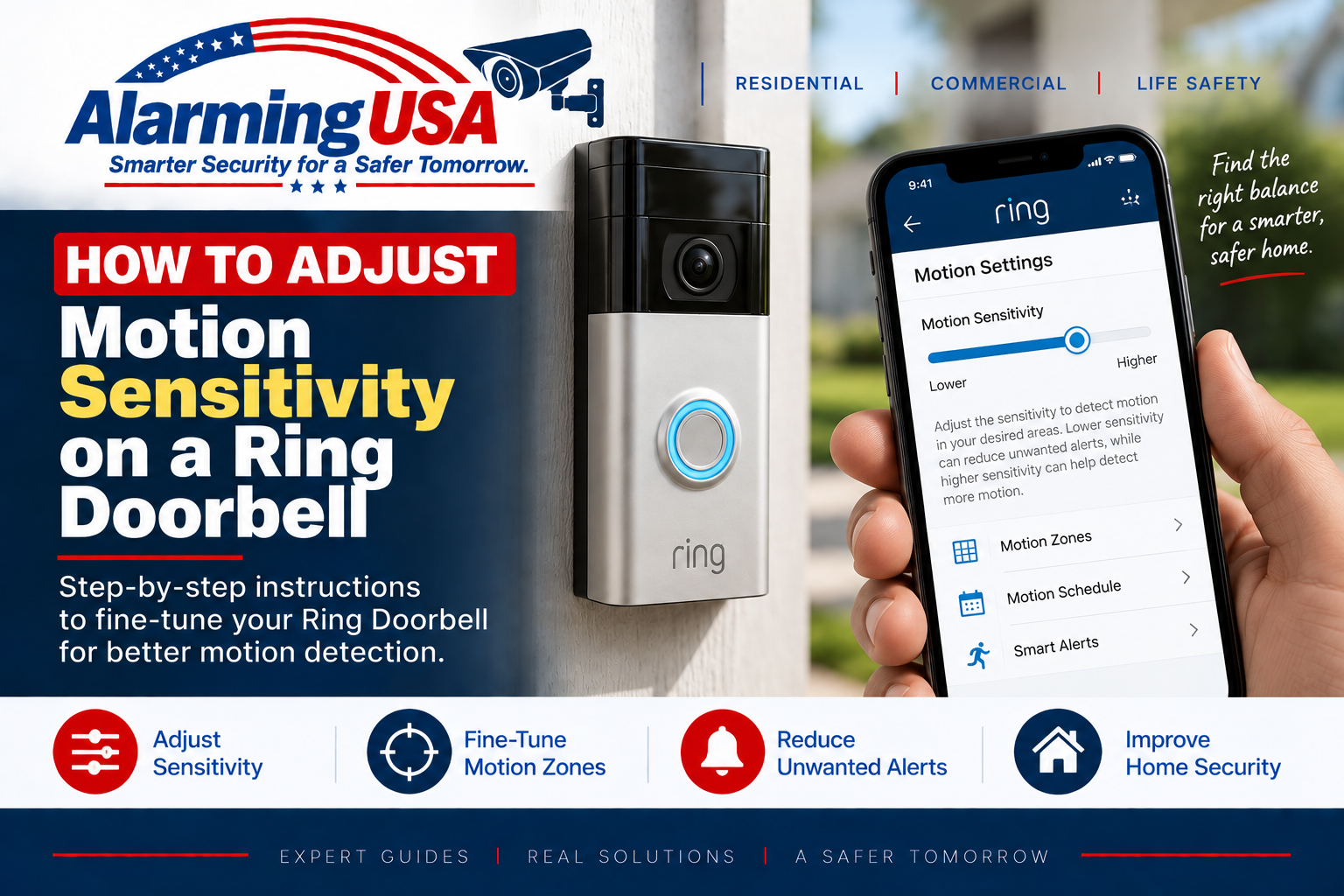
If your Ring Doorbell is missing visitors or sending too many unnecessary motion alerts, adjusting the sensitivity can help. This guide explains how to adjust Ring Doorbell motion sensitivity in the Ring app and how to balance detection range with unwanted alerts.
Ring states that the Motion Sensitivity slider changes the motion detection range of compatible Ring devices. Lower sensitivity reduces detection range and can reduce false alerts, while higher sensitivity can help when the doorbell is missing motion events.
How to Adjust Ring Doorbell Motion Sensitivity
Open the Ring app, go to the main dashboard, tap the menu, select Devices, choose your Ring Doorbell, and open Motion Settings. Select Motion Sensitivity and move the slider to adjust the detection range. Available settings can vary by Ring Doorbell model.
Step 1: Open Your Ring Doorbell in the Ring App
Open the Ring app and select the Ring Doorbell you want to adjust. Before changing settings, confirm that the doorbell is online. An offline Ring device will not detect motion normally.
Step 2: Open Motion Settings
From the doorbell’s device page, tap Motion Settings. Ring groups controls such as Motion Zones, Motion Sensitivity, Smart Alerts, Motion Schedules, and some advanced motion options in this area.
Step 3: Adjust the Motion Sensitivity Slider
Move the Motion Sensitivity slider gradually rather than jumping immediately from one extreme to the other. If people are being missed, increase sensitivity. If passing traffic, plants, shadows, or other unwanted activity is producing too many motion events, try lowering sensitivity.
Step 4: Test the New Setting
After making an adjustment, walk through the area where you want motion detected and review the result in the Ring app. Test realistic approaches to your door rather than standing directly in front of the device and repeatedly waving at it. If necessary, make another small adjustment and test again.
Should You Increase Ring Motion Sensitivity?
Increase Motion Sensitivity when your Ring Doorbell consistently misses legitimate activity within the area you want to monitor. Ring specifically recommends trying a higher sensitivity setting when motion events are being missed.
When Should You Lower Ring Motion Sensitivity?
Lower Motion Sensitivity when the doorbell is detecting too much unwanted activity. Ring notes that lowering sensitivity reduces the detection range, which can help decrease false or unwanted alerts.
Motion Sensitivity vs. Motion Zones
These settings solve different problems. Motion Zones define where the Ring Doorbell should watch for motion, while Motion Sensitivity adjusts how far or how readily motion is detected within the configured area. For best results, tune both instead of relying on sensitivity alone.
Use Motion Zones to Reduce Unwanted Alerts
If a street, sidewalk, tree, flag, or other area repeatedly creates unwanted events, review your Motion Zones. Ring recommends setting zones around the areas where you actually want motion detected and recorded while excluding unnecessary areas where possible.
Check Smart Alerts
On compatible Ring devices and subscriptions, Smart Alerts can distinguish categories such as people, vehicles, packages, and other motion. These settings can help refine which detected events generate recordings or notifications. Smart Alerts require a compatible Ring subscription.
Check Motion Schedules and Modes
If motion works at some times but not others, sensitivity may not be the problem. Review Motion Schedules and Mode Settings. Ring notes that these settings can affect motion detection or alerts during selected periods.
Check Wi-Fi Before Blaming Motion Sensitivity
Poor Wi-Fi can interfere with Ring device performance. In the Ring app, open your doorbell’s Device Health and review Signal Strength under Network. If the connection is poor, address connectivity before repeatedly increasing motion sensitivity.
What If Your Ring Doorbell Still Misses Motion?
If increasing sensitivity does not solve the problem, see our Ring Doorbell not detecting motion troubleshooting guide. Check Motion Detection, Motion Zones, Privacy Zones, schedules, Wi-Fi, device position, and model-specific advanced settings.
Does Higher Sensitivity Affect Battery Life?
Settings that cause a battery-powered Ring Doorbell to detect and record more activity can increase battery usage. If you raise sensitivity substantially, keep an eye on battery performance and reduce unnecessary motion events with properly configured Motion Zones.
Official Ring Motion Sensitivity Guidance
Ring’s official Motion Detection documentation explains that the Motion Sensitivity slider adjusts motion detection range. Ring recommends lowering sensitivity to reduce unwanted alerts and increasing it when the device is missing motion events. Because available features vary by model, use the settings shown for your specific Ring Doorbell in the current Ring app.
Final Thoughts
Learning how to adjust Ring Doorbell motion sensitivity can help you find the right balance between catching important activity and reducing unnecessary motion events. Make small changes, test each adjustment, and use Motion Zones alongside sensitivity for better control.